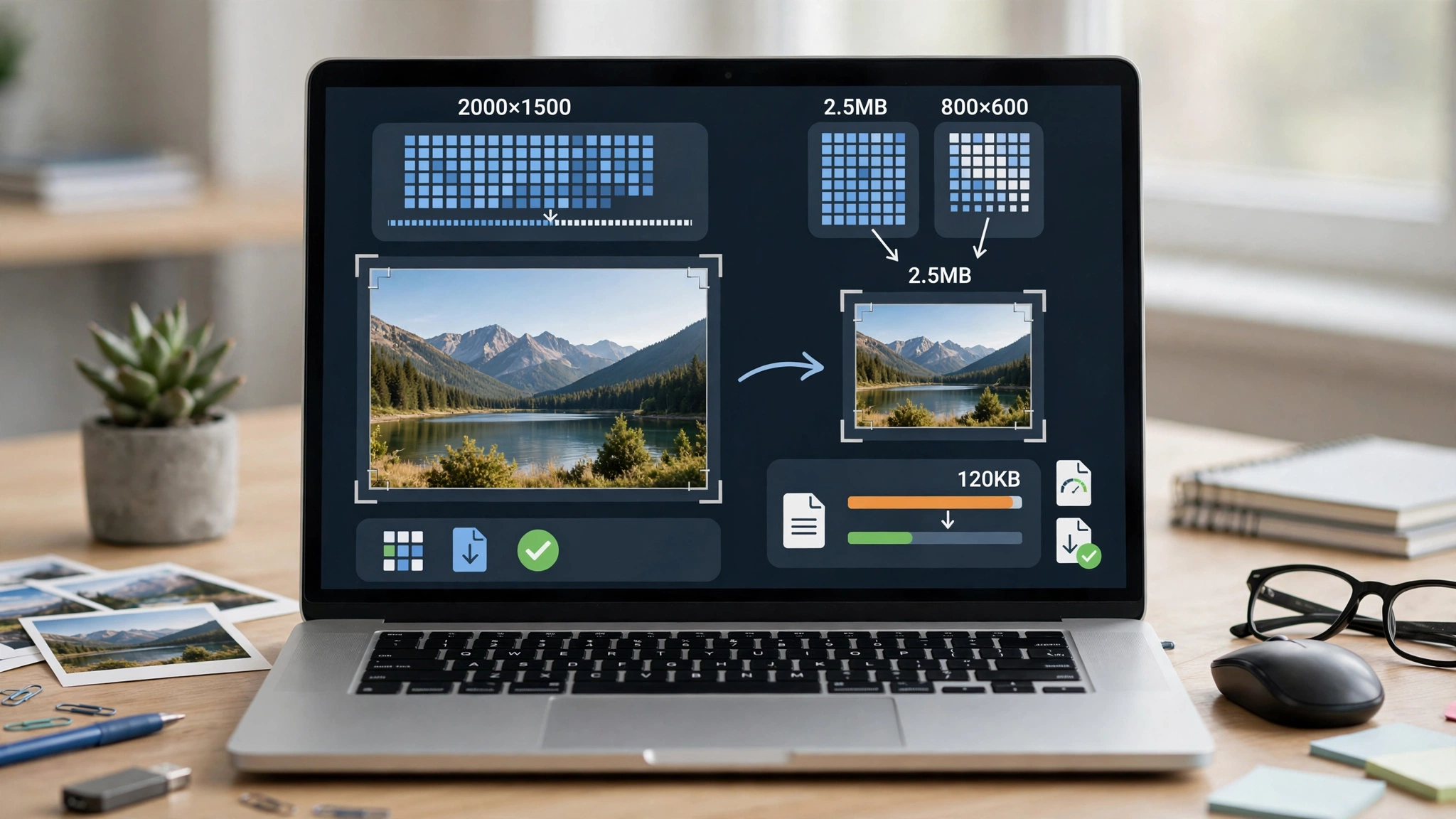
A photo can look right on your screen and still fail an upload. The form may ask for a particular shape, exact pixel dimensions, a supported file format and a maximum number of bytes. These are separate requirements. Working through them in order makes it easier to identify what needs changing without repeatedly degrading the image.
1. Copy the requirements before editing
Write down the accepted formats, minimum or exact width and height, and file-size limit. Check whether the instructions also specify a background, framing or maximum age of the photo. Do not assume that settings used for a different website will apply.
For example, a hypothetical form might request a 600 × 800-pixel JPEG under 200,000 bytes. A 600 × 800 image can exceed that byte limit, while a smaller file can still have the wrong dimensions. Meeting only one condition is not enough.
2. Keep the original and work on a copy
Save an untouched original before making changes. Give working files descriptive names so that the final export is easy to distinguish from earlier attempts. If a result becomes blurry or badly cropped, return to the original rather than trying to repair an already damaged version.
Start with a clear source image. Compression cannot recover missing focus, and enlarging a small photo does not recreate the detail of a higher-resolution original. If essential detail is already absent, taking another photograph may be more useful than adjusting export settings.
3. Check the shape before the dimensions
Aspect ratio describes the relationship between width and height. A 600 × 800 image has a 3:4 ratio. A square photo cannot fill that exact rectangle without cropping, adding space or distorting the subject.
Choose the option allowed by the receiving form. When cropping, check that important parts of the subject remain visible. Avoid forcing unrelated width and height values if that stretches a face or object. A file with the correct numbers can still be unsuitable when its contents are distorted.
4. Set the required pixel dimensions
After the framing is correct, resize to the required dimensions. Preserve the aspect ratio unless the task explicitly calls for another treatment. Inspect the exported width and height rather than relying on the values you remember entering.
Pixel dimensions and print-resolution labels are different. Changing a DPI or PPI label alone should not be treated as proof that a file now meets an online form’s pixel requirements. The receiving site’s instructions and the actual image dimensions are what matter.


5. Choose an accepted format
Use a format listed by the destination. JPEG is commonly used for photographs, but a particular form may have different rules. A format that works in your browser is not automatically supported by the upload service.
Renaming a filename from .png to .jpg does not convert its contents. Export or convert the image properly, then reopen it. If transparency is present, inspect how it appears after conversion to a format without transparency.
6. Reduce the byte size carefully
If dimensions and framing are correct but the file is too large, adjust compression while watching the visible detail. Avoid assuming that a lower quality setting always produces a useful result. Fine text, edges and small facial details deserve particular attention.
One option is the free KitForma image compressor. It offers JPG, PNG and WebP output and an optional target size. Its target-size mode may reduce dimensions as well as quality, so recheck both after processing. It treats 1 KB as 1,024 bytes; a 200 KB target therefore represents 204,800 bytes, which is above a 200,000-byte limit. Leave a margin and inspect the actual output. A target is an attempt, not a guarantee of acceptance.
7. Reopen the exact file you will upload
Before submitting, open the downloaded file and check these points:
- The format is accepted by the destination.
- The width and height meet its instructions.
- The actual file size is below the stated limit.
- The subject is framed correctly and essential details are readable.
- You selected the final export, not an earlier version.
If an upload fails, read the error before changing another setting. A format error calls for a different fix from a size error. Keep the original and compare each change against the requirements. For identity or official applications, follow the issuing organization’s photo rules; a general editing tool cannot certify that a photo complies.
Disclosure: The author Fatih Erkan created KitForma, the tool mentioned in this guide.