How to Upgrade to Windows 11 Without Paying a Cent
Learn how to upgrade to Windows 11 without paying a cent. Complete guide covering system requirements, TPM 2.0, free upgrade methods, and step-by-step instructions.
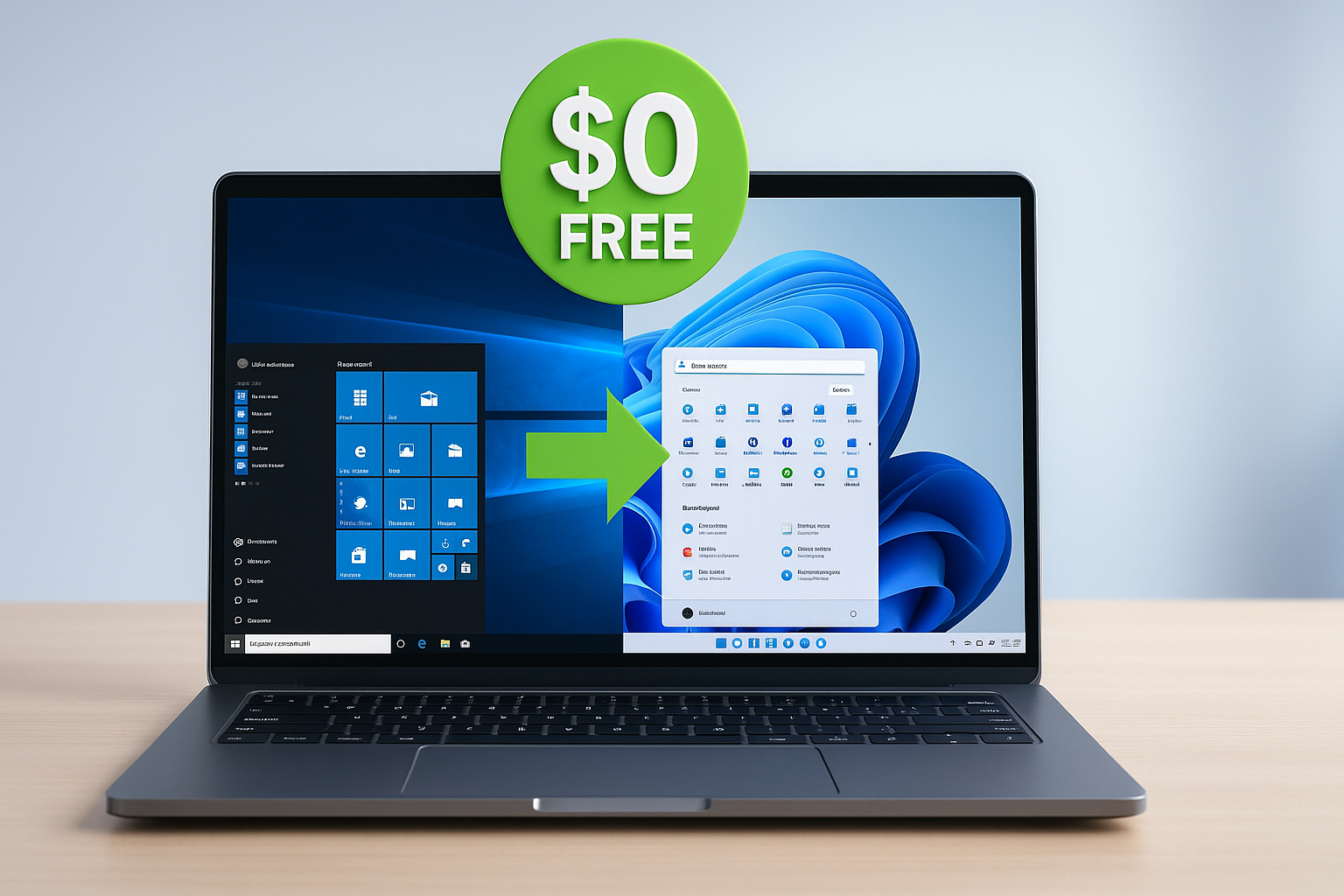
With Windows 10 support ending on October 14, 2025, millions of users are wondering how they can make the jump to Windows 11 without opening their wallets. Here’s the good news: if you’re currently running Windows 10, Microsoft is offering a free upgrade to Windows 11 that doesn’t cost a single penny. This isn’t a limited-time promotion that’s about to expire. The Windows 11 free upgrade remains available for all eligible devices, and the process is much simpler than you might think.
The catch? Your computer needs to meet certain Windows 11 system requirements. But don’t worry if you’re not sure whether your PC qualifies. This guide will walk you through everything you need to know about upgrading from Windows 10 to Windows 11 for free.
We’ll cover how to check if your computer is compatible, what to do if it isn’t, and the exact steps to install Windows 11 without spending money. Whether you’re tech-savvy or just getting started, you’ll find straightforward instructions that actually work. Let’s get your system upgraded and secure before Windows 10 loses support for good.
Understanding Windows 11 System Requirements
Before you start the free upgrade to Windows 11, you need to know if your computer can handle it. Microsoft has set specific minimum requirements that might seem strict, but they’re designed to ensure your system runs smoothly and stays secure.
The Core Requirements You Need to Meet
Your computer needs the following basics to run Windows 11:
- Processor: Intel 8th generation or newer, AMD Zen 2 or newer, or Qualcomm 7 and 8 Series
- RAM: 4GB minimum (though 8GB is recommended for better performance)
- Storage: At least 64GB of available storage space
- Graphics Card: DirectX 12 compatible with WDDM 2.0 driver
- Display: HD display greater than 9 inches, 720p resolution
- Internet Connection: Required for initial setup and updates
The TPM 2.0 Requirement Explained
Here’s where things get interesting. TPM 2.0 (Trusted Platform Module 2.0) is required to run Windows 11 as an important building block for security-related features. This security chip helps protect your encryption keys and sensitive data.
Most PCs that have shipped in the last 5 years are capable of running TPM 2.0. If your computer was built or purchased since 2017, there’s a strong chance it already has TPM 2.0 built in. It just might need to be enabled in your BIOS settings.
What About Secure Boot?
Secure Boot is another requirement that works alongside TPM 2.0. Secure Boot is a security standard supported by UEFI which limits a PC to boot only a specific OS. This prevents unauthorized software from loading when your computer starts up, adding an extra layer of protection against malware.
How to Check If Your PC Can Upgrade to Windows 11
Microsoft makes it easy to find out if you qualify for the Windows 11 free upgrade. You don’t need to be a tech expert to run these checks.

Using PC Health Check App
The PC Health Check app can be used to determine if a device can upgrade to Windows 11. This free tool from Microsoft analyzes your system and tells you exactly what’s compatible and what isn’t.
Steps to check compatibility:
- Download the PC Health Check app from Microsoft
- Install and open the application
- Click the “Check now” button
- Review the results to see if your PC meets all requirements
The app will specifically tell you if your processor, TPM 2.0, Secure Boot, and other components are ready for Windows 11. If something doesn’t meet the requirements, it will point out exactly what needs attention.
Manual Check Through Windows Settings
You can also verify compatibility manually without downloading additional software:
- Press Windows Key + R to open the Run dialog
- Type “msinfo32” and press Enter
- Look for “System Summary” in the left panel
- Check the Secure Boot State and BIOS Mode
If you see “UEFI” for BIOS Mode and “On” for Secure Boot State, you’re on the right track.
Checking TPM Status
To verify if TPM 2.0 is present and enabled:
- Press Windows Key + R
- Type “tpm.msc” and press Enter
- If you see a message confirming TPM is ready to use, check Specification Version under TPM Manufacturer Information to verify it is 2.0.
If you see “Compatible TPM cannot be found,” your TPM might just be disabled in the BIOS rather than missing entirely.
Free Methods to Upgrade to Windows 11
Now that you’ve confirmed your compatible PC meets the requirements, let’s look at the various ways you can upgrade to Windows 11 without spending money.
Method 1: Windows Update (The Easiest Way)
If you have a Windows 10 PC or laptop that’s ready for Windows 11, you can upgrade to Windows 11 for free just by running the update tool. This is the simplest method and requires minimal technical knowledge.
Step-by-step process:
- Click the Start menu and open Settings
- Navigate to Update & Security
- Click Windows Update in the left sidebar
- Click the “Check for updates” button
- If your PC is fully up to date, there’s a good chance it will already be pushing the Windows 11 update on you.
- Click the “Download and install” button when Windows 11 appears
- Follow the on-screen instructions
- Your PC will restart several times during installation
Once the upgrade is ready, we recommend that you initiate the free upgrade to Windows 11 right away. The entire process typically takes 30 minutes to an hour depending on your internet speed and computer performance.
Method 2: Windows 11 Installation Assistant
If Windows Update isn’t offering you the upgrade yet, the Windows 11 Installation Assistant is your next best option.
How to use Installation Assistant:
- Visit the Windows 11 download page
- Look for the Windows 11 Installation Assistant and select the blue Download now button
- Run the downloaded file
- Click “Accept and Install” to begin
- The assistant will download Windows 11 installation files
- The installation will then proceed without much input from you. It will download the Windows 11 installation media, then run the update. This could take up to 30 minutes
This method is particularly useful if you want to upgrade to Windows 11 immediately rather than waiting for Windows Update to push it to your device.
Method 3: Media Creation Tool
If you are starting a new PC build, or want to install Windows 11 on a new drive for your existing Windows 10 PC, the Windows Update tool and Installation Assistant won’t work so well. That’s where the Media Creation Tool comes in handy.
Creating installation media:
- Head to Microsoft’s Windows 11 upgrade page and under the heading Create Windows 11 Installation Media, select the blue Download Now button
- Run the mediacreationtool.exe file
- Accept the license terms
- Choose your language and edition
- Select USB Flash Drive option and find a USB drive with at least 8GB of free space
- Follow prompts to create the bootable media
- Restart your computer and boot from the USB drive
This method gives you more control over the installation process and is ideal for clean installs.
Method 4: ISO File Download
For advanced users who want maximum flexibility, downloading the Windows 11 ISO file is the way to go. You can mount it directly or burn it to a DVD.
Using ISO files:
- Visit Microsoft’s Windows 11 download page
- Select “Download Windows 11 Disk Image (ISO)”
- Choose your edition and language
- Download the ISO file
- Mount the ISO by double-clicking it in Windows 10
- Run the setup.exe file
- Follow installation instructions
The ISO method works great if you want to keep an offline copy of Windows 11 or if you need to install it on multiple computers.
What If Your PC Doesn’t Meet the Requirements?
Not everyone’s computer will pass the compatibility check on the first try. But that doesn’t necessarily mean you’re out of luck.
Enabling TPM 2.0 in BIOS
Many computers have TPM 2.0 hardware but it’s simply disabled. Here’s how to turn it on:
- Open Settings, click Update & Security, select Recovery, and click “Restart now”
- Click “Troubleshoot,” select “Advanced options,” choose “UEFI Firmware settings,” and click “Restart”
- The option to enable the TPM may be labeled Security Device, Security Device Support, TPM State, AMD fTPM switch, AMD PSP fTPM, Intel PTT, or Intel Platform Trust Technology
- Enable the TPM option
- Save changes and exit BIOS
- Restart your computer
Different motherboard manufacturers place these settings in different locations, so you might need to explore your BIOS menu carefully.
Enabling Secure Boot
Secure Boot is enabled or disabled within the BIOS program. The process is similar to enabling TPM:
- Access BIOS using the same method as above
- Look for Secure Boot settings (often under Security or Boot tabs)
- Change the setting to “Enabled”
- Save and exit
Note that if your drive uses MBR partition style instead of GPT, you’ll need to convert it first. Otherwise, your system won’t boot after enabling Secure Boot.
Understanding Your Options for Older Hardware
If your computer genuinely can’t meet the requirements, you have a few choices:
- Continue using Windows 10 until October 2025 (though you’ll lose security updates after that)
- Purchase Extended Security Updates from Microsoft (though this costs money)
- Consider upgrading your hardware if your current system is too old
- Explore alternative operating systems like Linux
Some users have found workarounds to install Windows 11 on unsupported hardware, but Microsoft warns that this could result in compatibility issues and you won’t receive updates.
Also Read: How to Get Windows 10 Extended Support: Step-by-Step 2025 Guide
Step-by-Step: Complete Upgrade Process
Let’s walk through the entire upgrade to Windows 11 process from start to finish, assuming you’re using the Windows Update method.
Before You Begin
Create a backup: Microsoft always recommends backing up files before installing a new Windows version. Use an external drive or cloud storage like OneDrive to protect your important data.
Free up storage space: Make sure you have at least 64GB free on your main drive. Delete unnecessary files or move them to external storage.
Update Windows 10: Ensure you’re running the latest version of Windows 10. Your device must be running Windows 10, version 2004 or later, to upgrade.
The Upgrade Process
- Run the compatibility check using PC Health Check app
- Open Windows Update in Settings
- Check for updates and install any pending Windows 10 updates first
- Download Windows 11 when it appears as an available upgrade
- Accept the license terms when prompted
- Let the installation run (this takes 30-90 minutes typically)
- Restart when prompted (your PC will restart multiple times)
- Complete the setup by following on-screen instructions
- Sign in with your Microsoft account
- Restore your files if you moved them during backup
What Happens During Installation
The default experience during a Windows 11 upgrade is that files and data are moved to the new Windows 11 installation. Your personal files, apps, and settings should all transfer automatically. However, some older apps might not be compatible and could be removed during the upgrade.
First Steps After Installation
Once Windows 11 is installed:
- Run Windows Update again to get the latest patches
- Check that all your apps are working properly
- Familiarize yourself with the new interface
- Set up Windows Hello if your device supports biometric login
- Configure your privacy settings
Troubleshooting Common Upgrade Issues
Even straightforward upgrades can hit snags. Here’s how to handle the most common problems.
“This PC Can’t Run Windows 11” Error
If you get this message despite meeting requirements:
- Verify that TPM 2.0 is enabled in BIOS
- Check that Secure Boot is turned on
- Make sure your Windows 10 is fully updated
- Try using the Installation Assistant instead of Windows Update
Installation Stuck or Frozen
If the installation stops progressing:
- Wait at least 30 minutes before taking action (some steps genuinely take time)
- Disconnect non-essential USB devices
- Check that you have stable power (plug in laptops)
- Restart the computer and try the upgrade again
Activation Issues
The free upgrade is for the same edition as you have on your Windows 10 device. If you have Windows 10 Home edition, you will be upgraded to Windows 11 Home edition. Your Windows 11 should activate automatically using your existing digital license.
If activation fails:
- Check your internet connection
- Go to Settings > Update & Security > Activation
- Click “Troubleshoot” to run the activation troubleshooter
- Ensure you’re signed in with the same Microsoft account
Performance Problems After Upgrade
If Windows 11 runs slowly after installation:
- Give it 24-48 hours to complete background optimization
- Update all device drivers from your computer manufacturer’s website
- Disable startup apps you don’t need
- Run Disk Cleanup to remove temporary installation files
- Check for Windows updates that might include performance fixes
Important Things to Know About Your Free Upgrade
Is This Really Free Forever?
The free upgrade offer does not have a specific end date for eligible systems. However, Microsoft reserves the right to eventually end support for the free offer. For now, the Windows 11 free upgrade remains available to all compatible Windows 10 systems.
Can You Go Back to Windows 10?
Once a device is upgraded to Windows 11, it has 10 days to move back to Windows 10 while still keeping files and data that were migrated to Windows 11. After 10 days, you’d need to do a clean installation of Windows 10 to downgrade.
To roll back within 10 days:
- Open Settings in Windows 11
- Go to System > Recovery
- Click “Go back” under Recovery options
- Follow the prompts
Will Your Files and Apps Survive?
Yes, your personal files, settings, and most apps will transfer during the upgrade. However, Microsoft may remove apps known to cause compatibility issues. You’ll see a list of removed apps after the upgrade completes.
What About Your Windows 10 License?
Your existing Windows 10 activation transfers to Windows 11. You don’t need a new product key. The digital license tied to your Microsoft account will automatically activate Windows 11 after installation.
Conclusion
Upgrading from Windows 10 to Windows 11 without spending money is not only possible but straightforward for most users. Microsoft’s free upgrade to Windows 11 offer continues to be available for all eligible devices, making it the perfect time to make the switch before Windows 10 support ends.
The key is ensuring your computer meets the Windows 11 system requirements, particularly TPM 2.0 and Secure Boot, which can often be enabled even if they’re not currently active. Whether you choose Windows Update for simplicity, the Installation Assistant for more control, or the Media Creation Tool for a clean install, each method gets you the same result: a fully licensed, free copy of Windows 11.
Take advantage of this opportunity while it lasts, back up your files beforehand, and follow the steps outlined in this guide to complete your upgrade safely and successfully.