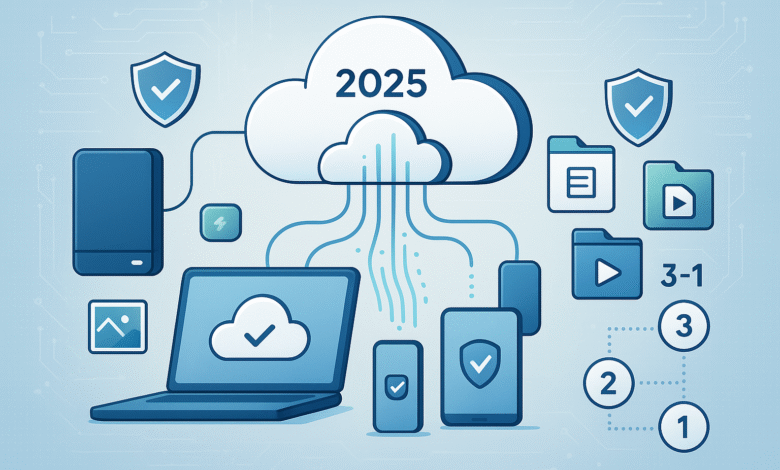
Your entire digital life lives on computers, smartphones, and cloud services. Family photos capturing precious memories, important documents for work and finances, years of creative projects, and countless hours of irreplaceable digital content could vanish in seconds. Whether it’s a ransomware attack, hardware failure, accidental deletion, or natural disaster, data loss strikes when you least expect it.
The harsh reality is that 54% of people know someone who has recently lost data, and the average cost of data recovery from a ransomware attack now exceeds $2.73 million for businesses. For individuals, lost family photos and personal documents are simply irreplaceable. Yet most people still don’t have a reliable backup strategy in place.
This complete 2025 guide will show you exactly how to back up your digital life using proven methods that protect against every type of data loss. You’ll learn the modern 3-2-1 backup rule, explore cloud backup versus external hard drive options, understand ransomware protection, and discover automated solutions that work while you sleep. By the end, you’ll have a bulletproof system that keeps your digital memories and important files safe forever.
Understanding the Modern Backup Landscape in 2025
Why Traditional Backup Methods Fall Short
The digital landscape has evolved dramatically, and so have the threats to your data. Ransomware attacks increased by 29% in 2022, with 89% now involving data exfiltration. Cybercriminals specifically target backup systems, knowing that compromised backups force victims to pay ransoms.
Traditional single-backup approaches create dangerous vulnerabilities:
- Single point of failure: One device breakdown destroys everything
- Connected backups: Network-attached storage can be encrypted by ransomware
- Same location risks: Local disasters affect primary and backup data simultaneously
- Manual processes: Human error leads to outdated or incomplete backups
The Evolution of Data Protection
Modern data protection strategies require multiple layers of security. The concept has expanded beyond simple file copying to comprehensive digital asset management that includes:
- Immutable backups that cannot be altered or deleted
- Air-gapped storage physically isolated from networks
- Automated verification ensuring backup integrity
- Cross-platform synchronization for seamless access
- Version control for recovering specific file iterations
The Gold Standard: Understanding the 3-2-1-1-0 Backup Rule
The Classic 3-2-1 Backup Strategy
The 3-2-1 backup rule remains the foundation of effective data protection:
- 3 copies of your data (original plus two backups)
- 2 different storage media types (hard drives, cloud, etc.)
- 1 copy stored offsite (geographically separated)
This approach provides redundancy, diversity, and isolation against most data loss scenarios.
Modern Enhancement: The 3-2-1-1-0 Rule
Security experts now recommend the enhanced 3-2-1-1-0 backup rule:


- 3 copies of your data
- 2 different media types
- 1 offsite copy
- 1 immutable backup (cannot be changed or deleted)
- 0 errors in backup verification
This upgraded strategy specifically addresses ransomware threats and ensures verified data recovery.
Implementing the 3-2-1 Strategy for Personal Use
Here’s a practical example for home users:
- Primary copy: Files on your computer or phone
- Local backup: External hard drive or Network Attached Storage (NAS)
- Offsite backup: Cloud storage service or remote location
If ransomware encrypts your computer and local backup, you can still restore everything from your cloud backup.
Cloud Backup Solutions: Your Digital Safety Net
Advantages of Cloud-Based Backup
Cloud backup services offer unparalleled convenience and security:
- Automatic synchronization keeps files updated continuously
- Geographic redundancy protects against local disasters
- Professional security with encryption and access controls
- Scalable storage that grows with your needs
- Multi-device access from anywhere with internet
Leading Cloud Backup Providers
Enterprise-grade services for comprehensive protection:
- Backblaze: Unlimited backup for $9/month with immutable storage
- IDrive: Feature-rich platform supporting multiple devices and external hard drive backup
- Dropbox: Seamless file sync with collaboration features
- Google Drive: 15GB free with integration across Google services
- Microsoft OneDrive: Tight Windows integration and Office 365 compatibility
Free Cloud Storage Options
Budget-conscious users can leverage free tiers:
- Google Drive: 15GB shared across Gmail and Photos
- Dropbox: 2GB with referral bonuses
- OneDrive: 5GB for Microsoft accounts
- iCloud: 5GB for Apple device users
Pro tip: Use multiple free services to exceed storage limits while maintaining data redundancy.
External Hard Drive Backup: Local Control and Speed
Benefits of Physical Backup Media
External hard drives provide unique advantages:
- Lightning-fast recovery: Gigabytes per second versus cloud’s megabytes
- No monthly fees: One-time purchase for years of storage
- Complete privacy: Data never leaves your physical control
- Large capacities: 1TB to 20TB+ for extensive collections
- Offline security: Immune to network-based attacks when disconnected
Choosing the Right External Drive
Storage capacity recommendations:
- 1TB: Adequate for documents and moderate photo collections
- 2TB: Comfortable for extensive media libraries
- 4TB+: Professional creators and large families
Drive types to consider:
- Portable SSDs: Fast, durable, compact (Samsung T7, SanDisk Extreme)
- Desktop HDDs: Maximum capacity, cost-effective (Western Digital My Book)
- Rugged drives: Weather-resistant for travel (ADATA HD830)
External Drive Best Practices
- Use multiple drives: Rotate between two drives stored in different locations
- Automate backups: Set scheduled copying to prevent human error
- Encrypt sensitive data: Protect against unauthorized access if stolen
- Test restoration: Regularly verify you can recover files successfully
- Monitor drive health: Replace aging drives before failure
Automated Backup Solutions: Set It and Forget It
The Power of Automation
Automated backup systems eliminate human error and ensure consistency:
- Scheduled operations run during off-hours
- Incremental backups only copy changed files
- Background processing doesn’t interrupt daily work
- Error notifications alert you to problems immediately
- Version history maintains multiple file iterations
Built-in Operating System Tools
Windows Backup Solutions:
- File History: Automatic versioning for user folders
- Backup and Restore: Full system imaging
- OneDrive integration: Seamless cloud sync
macOS Backup Features:
- Time Machine: Hourly incremental backups with easy recovery
- iCloud sync: Automatic document and desktop backup
- Migration Assistant: Complete system transfers
Third-Party Automation Software
Professional backup applications offer advanced features:
- Acronis True Image: Complete system cloning and ransomware protection
- EaseUS Todo Backup: Free and paid tiers with cloud integration
- AOMEI Backupper: Comprehensive backup and sync capabilities
- Duplicati: Open-source solution with encryption support
Ransomware Protection: Defending Your Digital Assets
Understanding the Ransomware Threat
Ransomware attacks specifically target backup systems to maximize damage. Modern strains:
- Encrypt connected drives including network storage
- Delete shadow copies and system restore points
- Spread laterally through network connections
- Exfiltrate data for double-extortion schemes
- Target backup software to prevent recovery
Implementing Ransomware-Resistant Backups
Air-gapped backup strategies:
- Disconnect drives after backup completion
- Use write-once media like Blu-ray discs
- Employ immutable cloud storage with retention policies
- Create offline copies stored in separate locations
- Implement access controls with multi-factor authentication
Recovery Planning for Ransomware Incidents
Incident response preparation:
- Document your systems for faster restoration
- Test recovery procedures regularly
- Maintain emergency contacts for IT support
- Keep essential tools on separate, clean systems
- Have communication plans for business continuity
According to NIST cybersecurity guidelines, organizations should maintain backups that are “conducted, maintained, and tested” as part of comprehensive cyber security strategy.
Mobile Device Backup: Protecting Pocket-Sized Lives
Smartphone Backup Solutions
iOS backup methods:
- iCloud Backup: Automatic nightly backups when charging
- iTunes/Finder: Complete device images on computer
- Third-party apps: Additional cloud storage options
Android backup approaches:
- Google Backup: System settings and app data
- Samsung Smart Switch: Comprehensive Samsung device backup
- Manufacturer tools: LG, HTC, and other brand-specific solutions
Essential Mobile Data to Protect
Critical mobile content:
- Photos and videos: Years of memories in your pocket
- Contacts: Professional and personal connections
- Messages: Important conversations and attachments
- App data: Game progress, notes, and customizations
- Documents: Mobile-created files and downloads
Mobile Backup Best Practices
- Enable automatic backups for hands-off protection
- Use multiple services for redundant protection
- Include external storage like microSD cards
- Backup before travel to protect against loss or theft
- Test restoration on old devices when upgrading
Testing and Maintaining Your Backup System
The Critical Importance of Backup Testing
A backup only matters if it works when you need it. NIST recommendations emphasize that backups must be “tested to verify media reliability and information integrity.”
Common backup failures:
- Corrupted files that won’t open
- Incomplete backups missing critical data
- Software conflicts preventing restoration
- Hardware compatibility issues with new systems
- User error in recovery procedures
Regular Testing Procedures
Monthly verification tasks:
- Spot-check random files for integrity
- Verify backup completion notifications
- Test file restoration from different dates
- Confirm storage availability and health
- Update backup software and drivers
Annual comprehensive testing:
- Full system restoration on test hardware
- Cross-platform compatibility verification
- Recovery time measurement for planning
- Documentation updates for procedures
- Staff training on restoration processes
Backup Maintenance Schedule
Weekly tasks:
- Monitor backup job completion
- Check available storage space
- Verify cloud service connectivity
Monthly tasks:
- Test sample file restoration
- Review and purge old backup versions
- Update backup software and drivers
Quarterly tasks:
- Perform complete system restoration test
- Review and update backup strategy
- Replace aging storage hardware
Annually:
- Comprehensive backup audit
- Update disaster recovery documentation
- Train family or team members on procedures
Creating Your Personal Backup Action Plan
Assessment: What Needs Protection?
Inventory your digital assets:
- Irreplaceable content: Family photos, personal videos, creative work
- Important documents: Financial records, contracts, legal papers
- Work materials: Projects, presentations, client files
- Software and settings: Licensed applications, custom configurations
- Digital collections: Music, movies, books, games
Budget Planning for Backup Solutions
Cost-effective approaches:
- Free tier strategy: Combine multiple free cloud services
- Hybrid approach: External drive plus cloud backup ($50-200 initial cost)
- Premium cloud service: $10-20/month for unlimited backup
- Enterprise solutions: $50-100/month for business-grade protection
Implementation Timeline
Week 1: Emergency backup
- Set up basic cloud backup for critical files
- Purchase and configure external hard drive
- Enable built-in OS backup features
Week 2: Comprehensive system
- Implement 3-2-1 backup strategy
- Configure automated backup schedules
- Test restoration procedures
Week 3: Optimization
- Add ransomware protection measures
- Set up mobile device backup
- Document backup procedures
Month 2 and beyond: Maintenance
- Regular testing and monitoring
- Quarterly strategy reviews
- Annual system upgrades
Family Backup Coordination
Multi-person households need:
- Shared cloud storage for family photos and documents
- Individual accounts for personal files and privacy
- Central backup system for shared computers
- Mobile backup for each family member’s devices
- Emergency procedures everyone understands
For comprehensive backup solutions that handle multiple devices automatically, consider services like Backblaze Personal Backup which offers unlimited backup for entire households.
Advanced Backup Strategies for Power Users
Network Attached Storage (NAS) Systems
Professional-grade home backup:
- Synology DiskStation: User-friendly interface with robust features
- QNAP: High-performance systems for content creators
- Drobo: Simplified RAID management for non-technical users
NAS advantages:
- Multi-device backup from all household computers
- RAID protection against drive failure
- Remote access for files anywhere
- Media streaming and sharing capabilities
- Expandable storage as needs grow
Version Control for Creative Professionals
Advanced file management:
- Git repositories for code and text documents
- Adobe Creative Cloud for design project versioning
- Dropbox Smart Sync for large file collections
- Google Workspace for collaborative document history
- Time Machine snapshots for macOS users
Disaster Recovery Planning
Business continuity considerations:
- Recovery Time Objective (RTO): How quickly you need access restored
- Recovery Point Objective (RPO): Maximum acceptable data loss
- Communication plans for coordinating recovery efforts
- Alternative work locations if primary site unavailable
- Vendor relationships for emergency hardware replacement
Conclusion
Protecting your digital life requires more than hoping your devices never fail. The 3-2-1-1-0 backup strategy provides proven protection against every type of data loss, from hardware failures to ransomware attacks. By combining cloud backup services, external hard drives, and automated systems, you create multiple safety nets that ensure your precious memories and important documents survive any disaster.
Start today with the basics: enable cloud backup for your most critical files and purchase an external hard drive for local copies. Then gradually build toward a comprehensive system with automated backups, regular testing, and ransomware protection. Your future self will thank you when disaster strikes and your digital assets remain safe and easily recoverable.
Remember, data backup isn’t just about technology—it’s about preserving the digital story of your life. Every family photo, creative project, and important document represents irreplaceable value that deserves the best protection available. Don’t wait until it’s too late to secure your digital life with proper backup strategies.